> ## Documentation Index
> Fetch the complete documentation index at: https://docs.getkadabra.com/llms.txt
> Use this file to discover all available pages before exploring further.
# Connecting Services
> Securely authenticate external tools like Google Docs, Slack, HubSpot etc to enable automation
# Authentication & Connections
To automate workflows, Kadabra needs permission to interact with your external tools (such as posting to Slack, updating HubSpot, or reading from Notion). We prioritize security and transparency in how these connections are handled.
## The Agent Approach (Recommended)
The fastest way to authenticate is to let the AI Agent guide you.
When you ask the Agent to build a flow involving an external tool, it will automatically detect if authentication is required. It will prompt you at the exact right moment to sign in, ensuring the connection is scoped correctly for the task at hand.
**Best Practice:** Simply type "Create a flow that sends a Slack message when a new lead arrives." The Agent will handle the logic and present the login button when needed.
## Manual Connection Setup
If you prefer to build your flow manually or need to add a specific integration yourself, follow these steps:
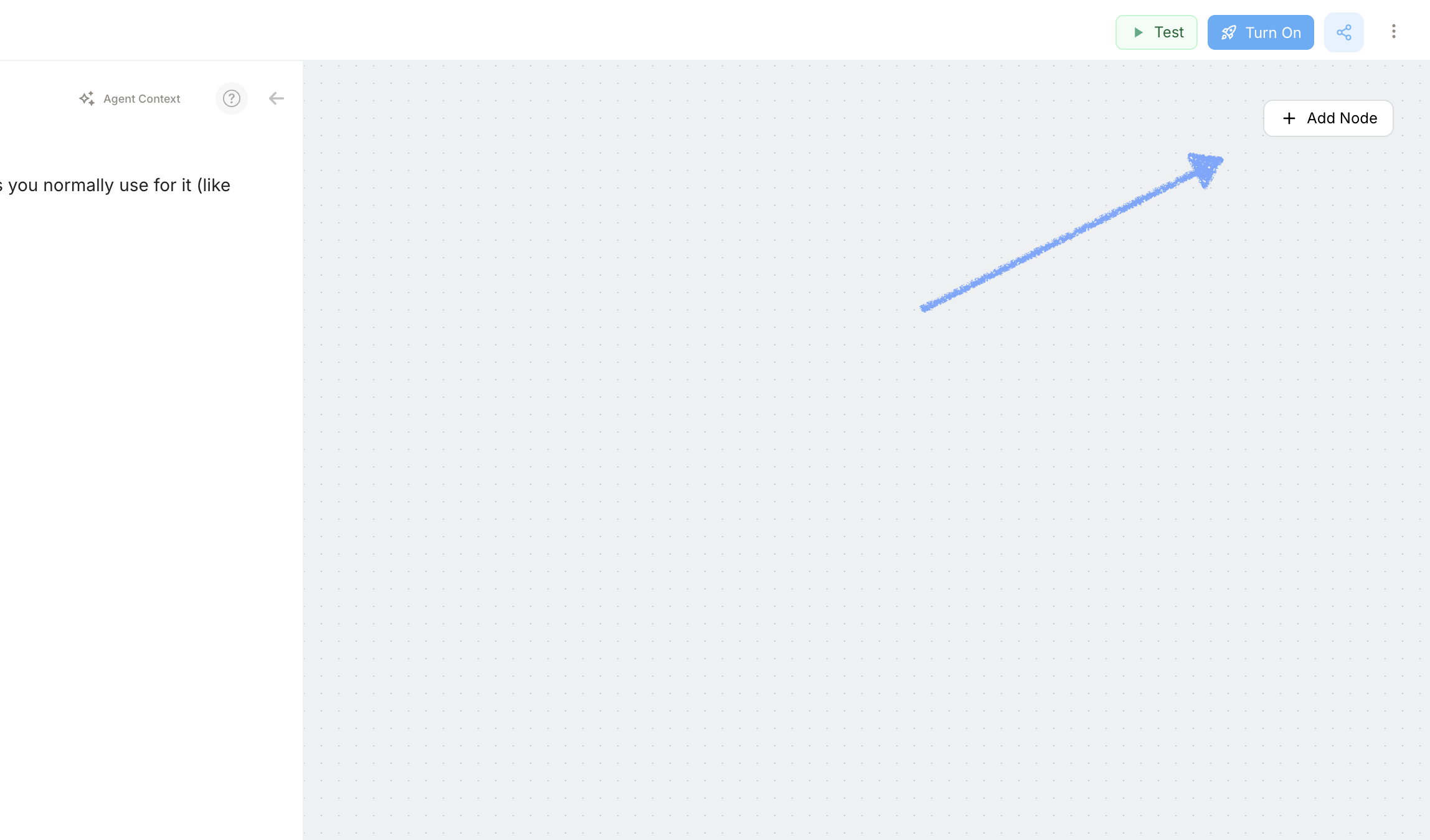 Click the **Add Node** button located on the top right of the Canvas.
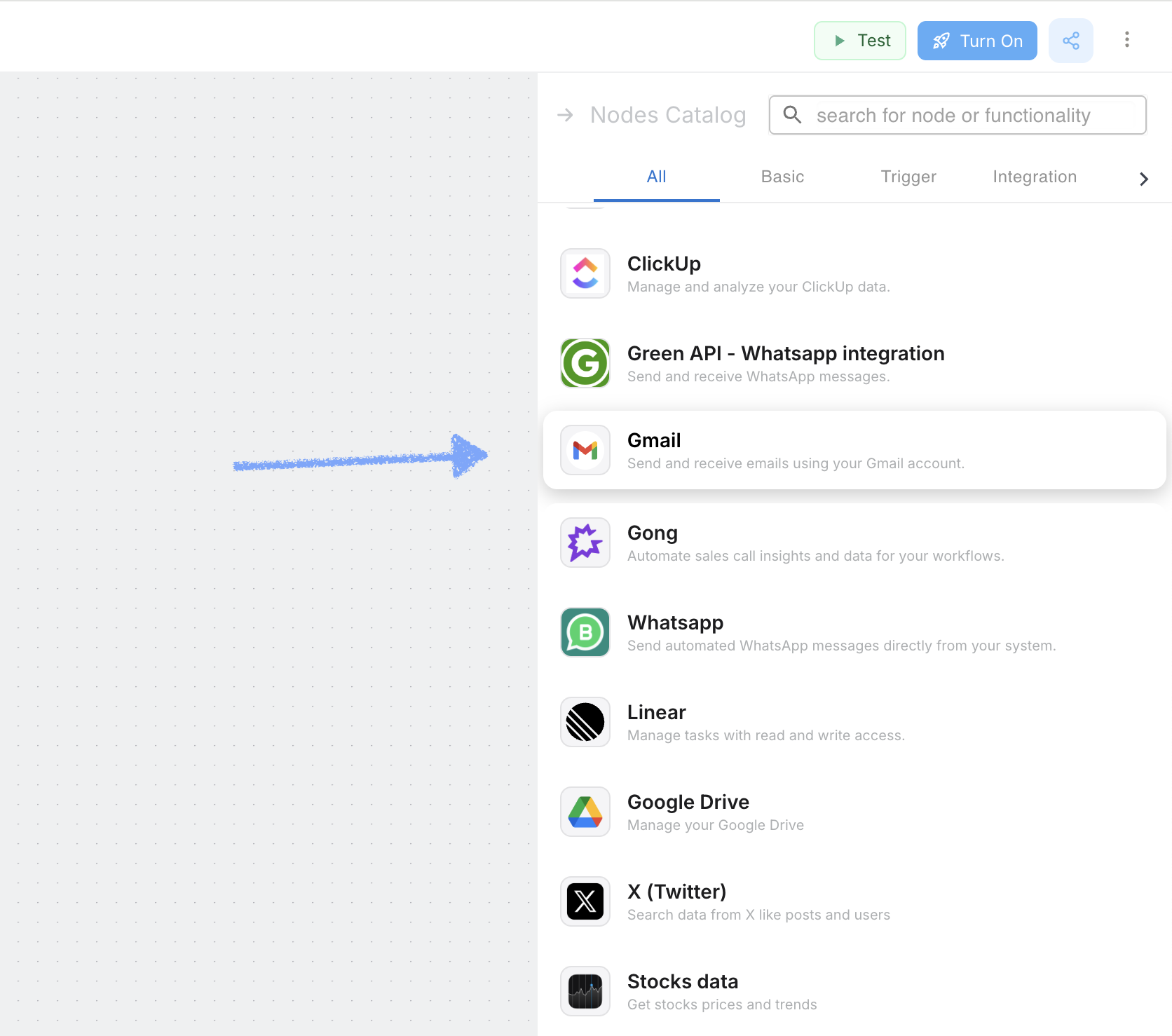 Drag the relevant service node (e.g., **Slack**, **HubSpot**, **Gmail**) onto your canvas.
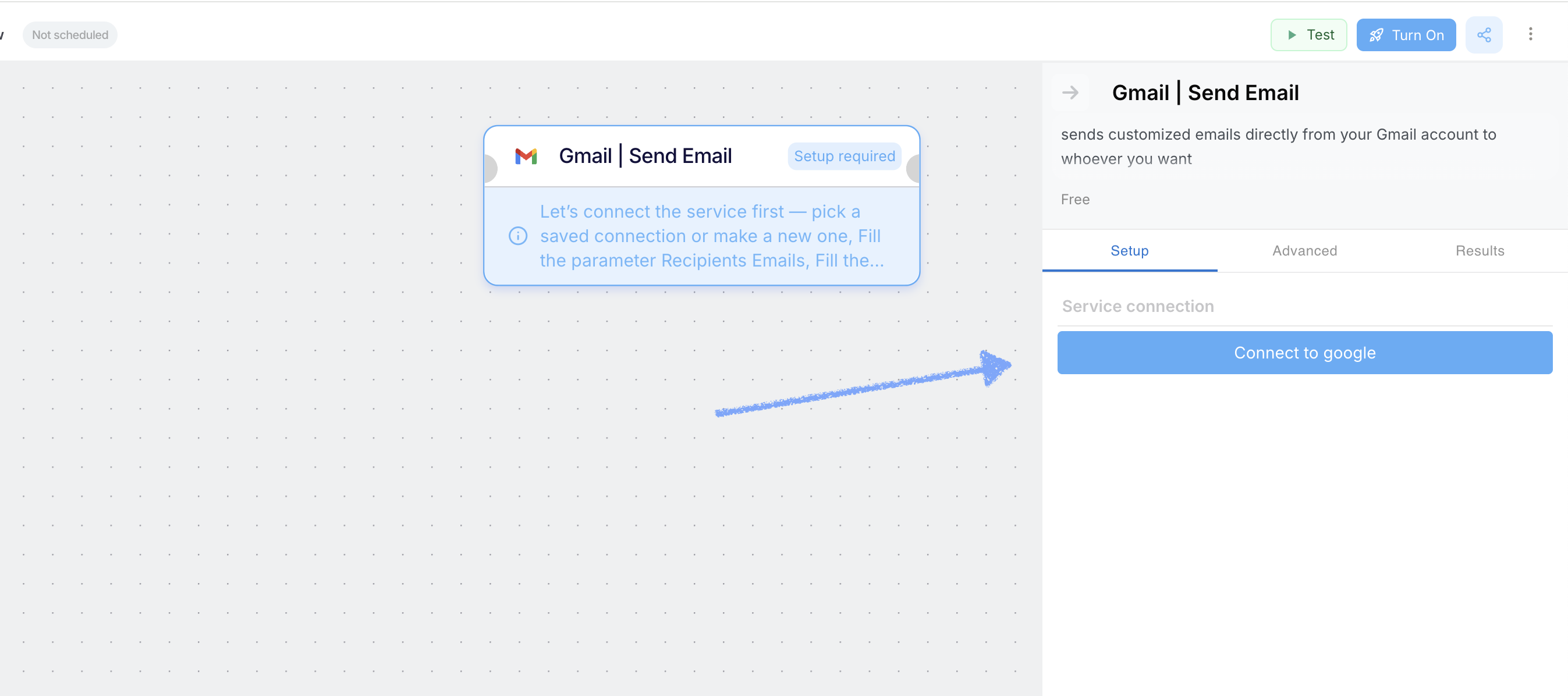 Click the **Connect to X (Service Name)** button in the node properties panel.
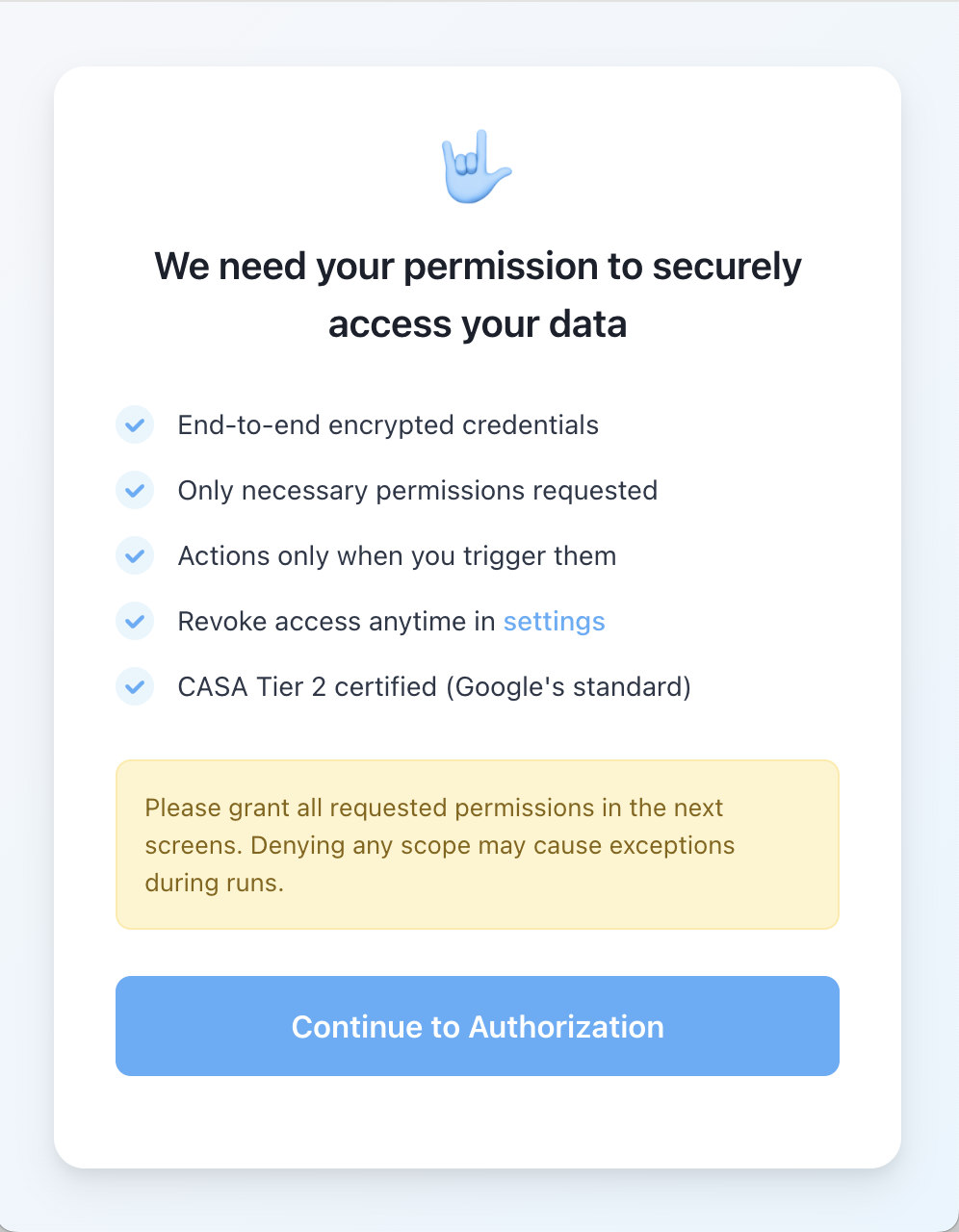 A security overview screen will appear. We believe in transparency regarding how your keys are encrypted and stored.
A standard OAuth window for the service will open. Sign in and grant Kadabra the necessary permissions to execute your workflow.
Once authorized, the window will close, and the node will show a "Connected" status. This credential is now saved for future use across other flows.
## Security & Permissions
We treat your credentials with the highest level of security.
Your access tokens are encrypted using industry-standard protocols. We never see your raw passwords.
We only request the specific permissions required to execute the actions you select in your flow.
## Managing Credentials
You can view, update, or revoke your existing connections at any time.
Need to remove a connection? Please refer to our guide on [Deleting Credentials](/how-to/delete-credentials).
A security overview screen will appear. We believe in transparency regarding how your keys are encrypted and stored.
A standard OAuth window for the service will open. Sign in and grant Kadabra the necessary permissions to execute your workflow.
Once authorized, the window will close, and the node will show a "Connected" status. This credential is now saved for future use across other flows.
## Security & Permissions
We treat your credentials with the highest level of security.
Your access tokens are encrypted using industry-standard protocols. We never see your raw passwords.
We only request the specific permissions required to execute the actions you select in your flow.
## Managing Credentials
You can view, update, or revoke your existing connections at any time.
Need to remove a connection? Please refer to our guide on [Deleting Credentials](/how-to/delete-credentials).