> ## Documentation Index
> Fetch the complete documentation index at: https://docs.getkadabra.com/llms.txt
> Use this file to discover all available pages before exploring further.
# Core Concepts
> Everything you need to understand Kadabra deeply
# Understand Kadabra's Core Concepts
This page explains how Kadabra works so you can design reliable automations with confidence.
***
## What is a Flow
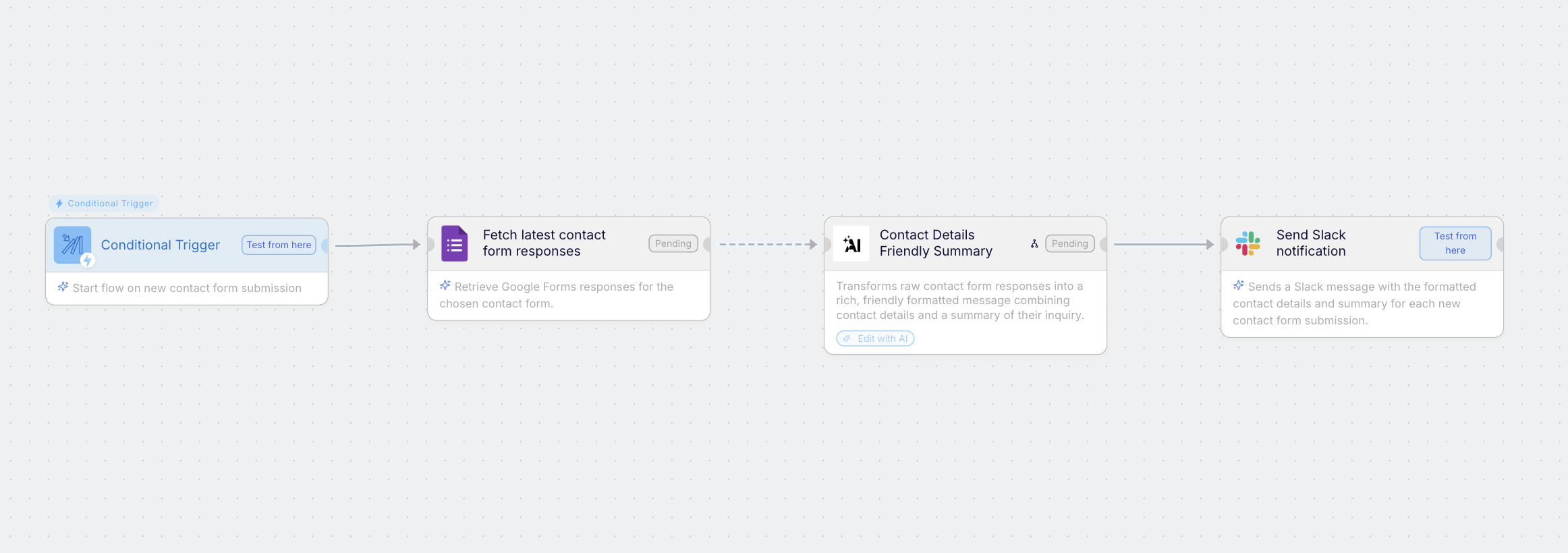 A **Flow** is your complete automation. It is a sequence of nodes on the Canvas that pass data from one step to the next to achieve a goal.
Nodes do one job each. Lines define order and data movement.
Flows accept inputs and produce outputs you can expose to Interfaces or APIs.
Flows start with Manual, Schedule, Event, or API triggers. Every run is logged.
Think of a flow as a recipe. Nodes are steps. Triggers press Start.
***
## AI Automation types
An **AI Automation** connects tools, data, and logic to act automatically. In Kadabra, an automation can be **deterministic**, **agentic**, or **hybrid**.
Flexible and intelligent - the Agent reasons, decides, and uses tools with context.
Predictable and rule based - executes predefined steps with clear inputs and outputs.
Best of both - the Agent interprets, then deterministic nodes execute at speed and scale.
Example: Agent reads a request - extracts intent and fields - passes structured data to nodes that update the CRM and notify Slack.
***
## Kadabra Agent
The **Kadabra Agent** collaborates with you to plan, build, and maintain automations, and answers questions about Kadabra.
You describe the outcome. The Agent clarifies scope, constraints, and success criteria.
Points out missing pieces like a spreadsheet, form, integration, or credential.
Suggests nodes, connections, triggers, and interface inputs and outputs.
Places nodes, connects them, and configures fields so you start from a working draft.
Add or remove steps, switch triggers, retune prompts, or replace tools by asking the Agent.
Ask how Kadabra works. The Agent explains features, patterns, and best practices in context.
## Canvas
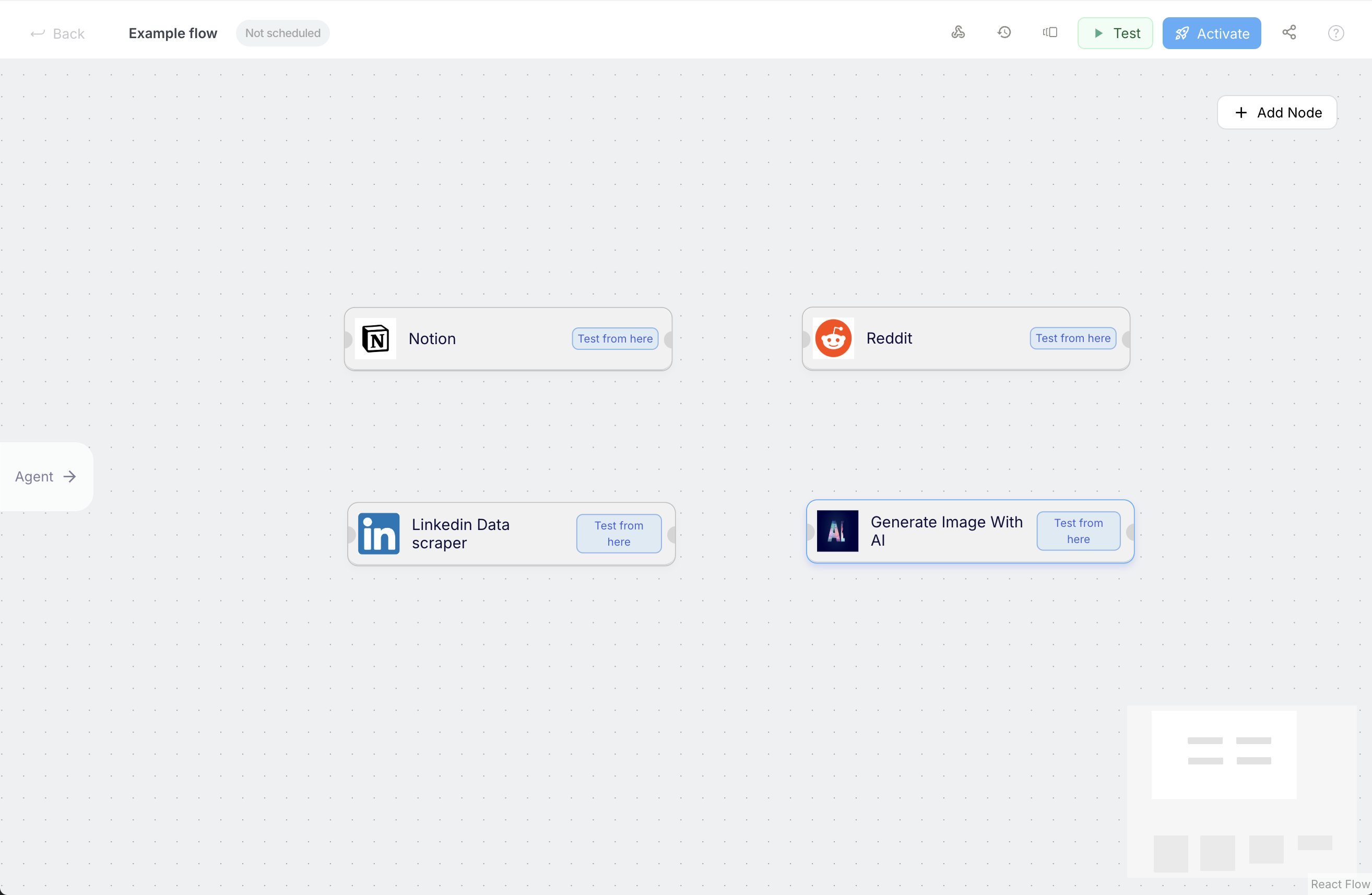
The **Canvas** is your visual runtime for design and debugging.
Connect nodes, see data flow, and issue plain English edits the Agent applies for you.
Inspect inputs and outputs on any line. Great for testing and troubleshooting.
A **Flow** is your complete automation. It is a sequence of nodes on the Canvas that pass data from one step to the next to achieve a goal.
Nodes do one job each. Lines define order and data movement.
Flows accept inputs and produce outputs you can expose to Interfaces or APIs.
Flows start with Manual, Schedule, Event, or API triggers. Every run is logged.
Think of a flow as a recipe. Nodes are steps. Triggers press Start.
***
## AI Automation types
An **AI Automation** connects tools, data, and logic to act automatically. In Kadabra, an automation can be **deterministic**, **agentic**, or **hybrid**.
Flexible and intelligent - the Agent reasons, decides, and uses tools with context.
Predictable and rule based - executes predefined steps with clear inputs and outputs.
Best of both - the Agent interprets, then deterministic nodes execute at speed and scale.
Example: Agent reads a request - extracts intent and fields - passes structured data to nodes that update the CRM and notify Slack.
***
## Kadabra Agent
The **Kadabra Agent** collaborates with you to plan, build, and maintain automations, and answers questions about Kadabra.
You describe the outcome. The Agent clarifies scope, constraints, and success criteria.
Points out missing pieces like a spreadsheet, form, integration, or credential.
Suggests nodes, connections, triggers, and interface inputs and outputs.
Places nodes, connects them, and configures fields so you start from a working draft.
Add or remove steps, switch triggers, retune prompts, or replace tools by asking the Agent.
Ask how Kadabra works. The Agent explains features, patterns, and best practices in context.
## Canvas
The **Canvas** is your visual runtime for design and debugging.
Connect nodes, see data flow, and issue plain English edits the Agent applies for you.
Inspect inputs and outputs on any line. Great for testing and troubleshooting.
 ## Triggers
**Triggers** tell Kadabra when to run a flow.
Run on demand from the editor or an Interface.
Run hourly, daily, weekly, or at custom times.
Run when something happens in another app like a new row in a sheet or a new lead in a CRM.
Expose a webhook URL so external systems can start the flow programmatically.
Every run is visible in Monitor with inputs, outputs, and errors so you can trace exactly what happened.
***
## Credits
Credits are the usage currency that power every action inside Kadabra: from running AI nodes to executing integrations.
### How credits are consumed
Each node (like **AI Node** or **Google Search**) has a specific credit cost whenever it runs.\
*Examples:*
* AI Node → **50 credits**
* Google Search → **1 credit**
A **Flow** is made of multiple nodes.\
The **total cost** of running a flow equals the **sum of all its node costs** during that execution.
**Example:** A flow with 1 AI Node and 1 Google Search node will consume **51 credits per run**.
You can discover the credit cost for each node directly in the **Nodes Catalog:** available when creating or editing a flow.
Your detailed **credit usage** and **total monthly costs** are displayed on your **Account** page,\
so you always know where your credits go.
## Interface
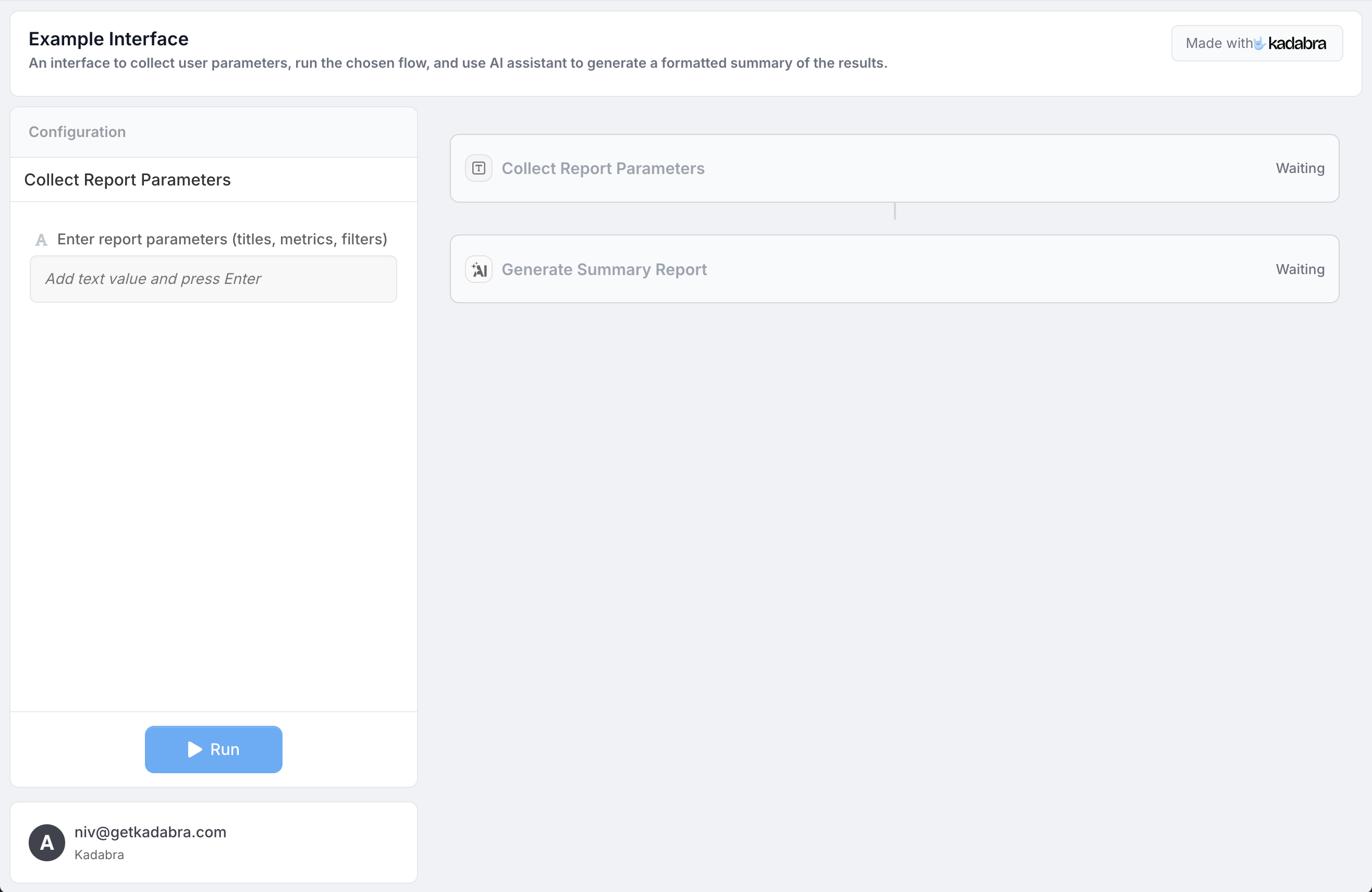
An **Interface** is a user facing surface on top of a flow. Define the inputs a flow needs and the outputs it returns, then share a simple form that runs the flow.
Text, options, files, IDs - only what the flow needs.
Return results, links, summaries, or files.
Let teammates or clients run the flow without editing it.
## Triggers
**Triggers** tell Kadabra when to run a flow.
Run on demand from the editor or an Interface.
Run hourly, daily, weekly, or at custom times.
Run when something happens in another app like a new row in a sheet or a new lead in a CRM.
Expose a webhook URL so external systems can start the flow programmatically.
Every run is visible in Monitor with inputs, outputs, and errors so you can trace exactly what happened.
***
## Credits
Credits are the usage currency that power every action inside Kadabra: from running AI nodes to executing integrations.
### How credits are consumed
Each node (like **AI Node** or **Google Search**) has a specific credit cost whenever it runs.\
*Examples:*
* AI Node → **50 credits**
* Google Search → **1 credit**
A **Flow** is made of multiple nodes.\
The **total cost** of running a flow equals the **sum of all its node costs** during that execution.
**Example:** A flow with 1 AI Node and 1 Google Search node will consume **51 credits per run**.
You can discover the credit cost for each node directly in the **Nodes Catalog:** available when creating or editing a flow.
Your detailed **credit usage** and **total monthly costs** are displayed on your **Account** page,\
so you always know where your credits go.
## Interface
An **Interface** is a user facing surface on top of a flow. Define the inputs a flow needs and the outputs it returns, then share a simple form that runs the flow.
Text, options, files, IDs - only what the flow needs.
Return results, links, summaries, or files.
Let teammates or clients run the flow without editing it.
 ***
## Summary
* **Flow** - sequence of nodes on the Canvas that achieves a goal.
* **Agent** - plans, checks prerequisites, places and edits nodes, and answers Kadabra questions.
* **Canvas** - visual environment for design and debugging.
* **Interface** - shareable form on top of a flow.
* **Triggers** - start flows manually, on a schedule, on events, or by API.
* **Credits** - usage model for AI and execution.
Quick answers about usage, billing, and limits.
Practical, step by step tutorials.
Create an Agent that plans and edits on the Canvas.
***
## Summary
* **Flow** - sequence of nodes on the Canvas that achieves a goal.
* **Agent** - plans, checks prerequisites, places and edits nodes, and answers Kadabra questions.
* **Canvas** - visual environment for design and debugging.
* **Interface** - shareable form on top of a flow.
* **Triggers** - start flows manually, on a schedule, on events, or by API.
* **Credits** - usage model for AI and execution.
Quick answers about usage, billing, and limits.
Practical, step by step tutorials.
Create an Agent that plans and edits on the Canvas.